Docs
AI assistants
Ask Claude, ChatGPT, Cursor or another assistant about your own work and money — “am I free the first week of March?”, “who’s late paying?”, “add this enquiry” — and it answers from your toqe document. Optional, off until you connect one, and you decide whether it may only read or also write.
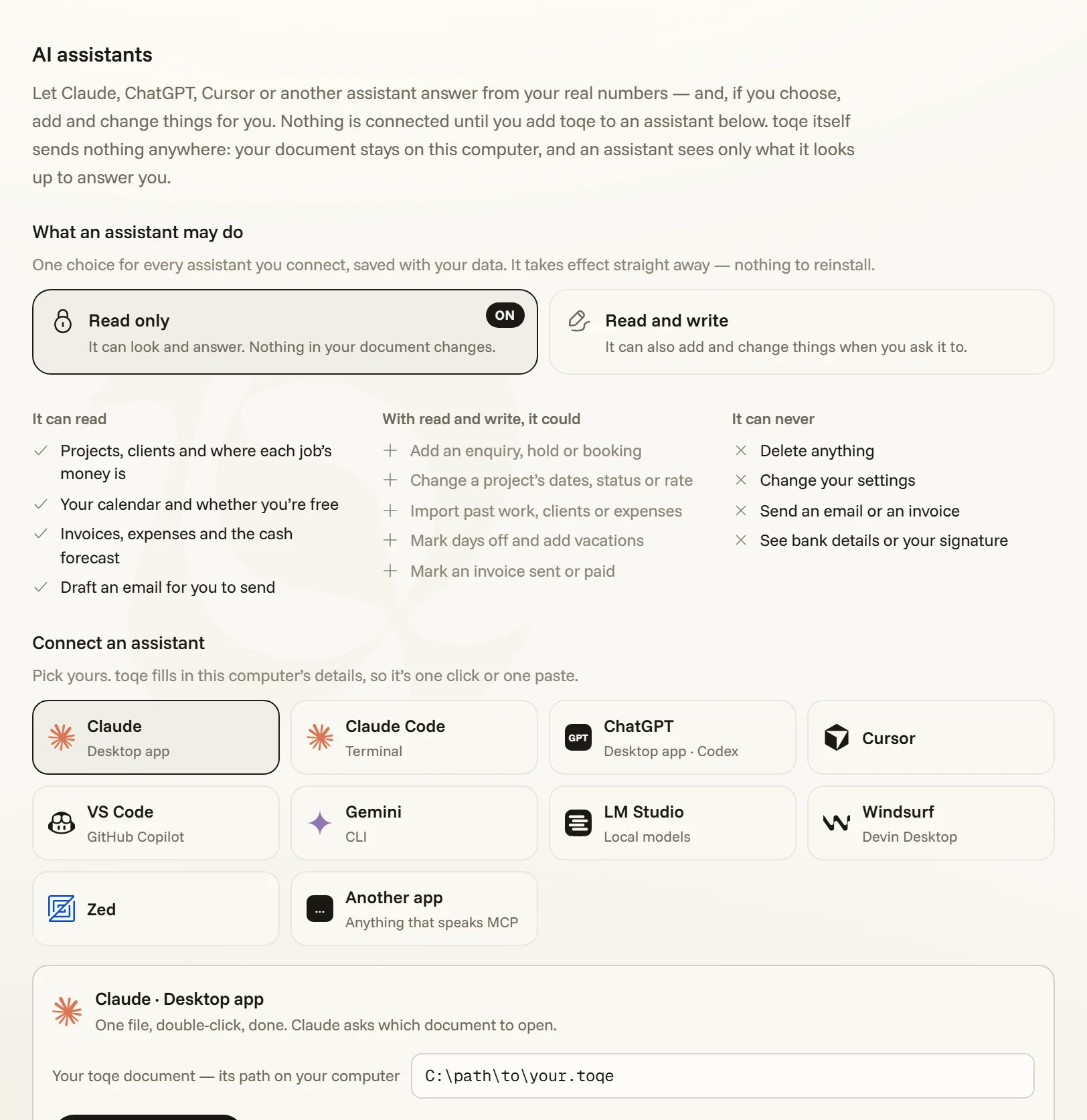
Read only, or read and write
Open Settings → AI assistants. The first thing on the page is one choice, and it covers every assistant you connect:
- Read only (how it starts) — the assistant can look things up and answer. Nothing in your document changes.
- Read and write — it can also add and change things when you ask it to.
The choice is saved in your document, not in the assistant, so it takes effect on the assistant’s very next step — nothing to reinstall — and an assistant can’t switch it on for itself. Switch back whenever you like. If you’d rather one particular assistant never wrote at all, its own connection has a read-only setting that holds whatever toqe says.
| What the assistant can do | |
|---|---|
| Always | See your projects and where each job’s money is, check whether you’re free on a date or range, read invoices, clients, expenses, the cash forecast and what needs attention, and draft an email for you to send. |
| With read and write | Add an enquiry, hold or booking · change a project’s dates, status, rate or client · import past work, clients or expenses · mark days off, half days and pencil marks · add a vacation · mark an invoice sent or paid. |
| Never | Delete anything, change your settings, send an email or an invoice, or see your bank details or signature. |
Connecting
Under the choice, pick your assistant. toqe fills in this computer’s details — where your document is, where its connector lives — so each one is a single click or a single paste:
- Claude (the desktop app) — Add to Claude saves one file; double-click it and Claude asks which document to open.
- Cursor, VS Code and LM Studio — one button opens the app with toqe ready to confirm.
- Claude Code, ChatGPT (the desktop app, through Codex) and Gemini — one command, copied with your paths already in it.
- Windsurf, Zed and anything else that speaks MCP — one block to paste into its settings.
Every route except Claude’s desktop app needs Node.js on the computer. Connecting is per computer and per assistant; to disconnect, remove “toqe” from that assistant’s own list. An assistant that only runs in a web page — ChatGPT in the browser, for one — can’t open a file on your computer, so it can’t connect; use its desktop app.
Asking it things
- “Am I free 3–14 March?” — a straight answer in toqe’s own terms: only firm work makes a day taken; a hold or an enquiry is named for what it is. Ask for the next free week and it finds one.
- “What’s outstanding, and who’s late?” — from your invoices, with a drafted chase for each if you want one.
- “Add an enquiry from Untold for 9–13 June at £650 a day.” — with read and write on, it checks the dates, adds it the way toqe’s own New enquiry does, and tells you what else is on those days.
- “Here’s last year’s spreadsheet — bring it in.” — it runs the rows through toqe’s own import tool, shows you what would land, and imports when you say so. With read only, it hands you a file to drop on the import tool instead.
What keeps it safe
- A copy first. Before any change, the connector keeps a copy of your document as it stood — beside the document, and in the dated backups that Data → Restore lists.
- toqe’s own rules. A change goes through the same engine as the app: a status moves by the same rules, an import dedupes the same way, and a booking never erases a day off.
- Nothing lost between the two. If toqe is open, it picks the change up within seconds. If you were mid-edit, an addition folds in beside your work; anything that truly disagrees asks you, as it would between two computers (Your data).
- A list you can read. Every change is listed under Settings → AI assistants, newest first, with which assistant made it.
Privacy
toqe sends nothing anywhere: the connector runs on your computer and opens your document there. What an assistant looks up to answer you is seen by that assistant, exactly like anything else you type to it — so its maker’s privacy terms apply to those answers. A password-protected document needs its password in the assistant’s own settings; toqe never copies it for you.